 MJ PDF
How to highlight PDF text on Android with MJ PDF
Highlighting turns a long PDF into something you can revisit quickly. In MJ PDF 3.1.0 you select text, pick a color from the bar that appears, and your highlights stay with the document. You can list them later from the reader menu.
Step by step
- Open a PDFOpen any PDF from the Recent, Library or Folders tab.
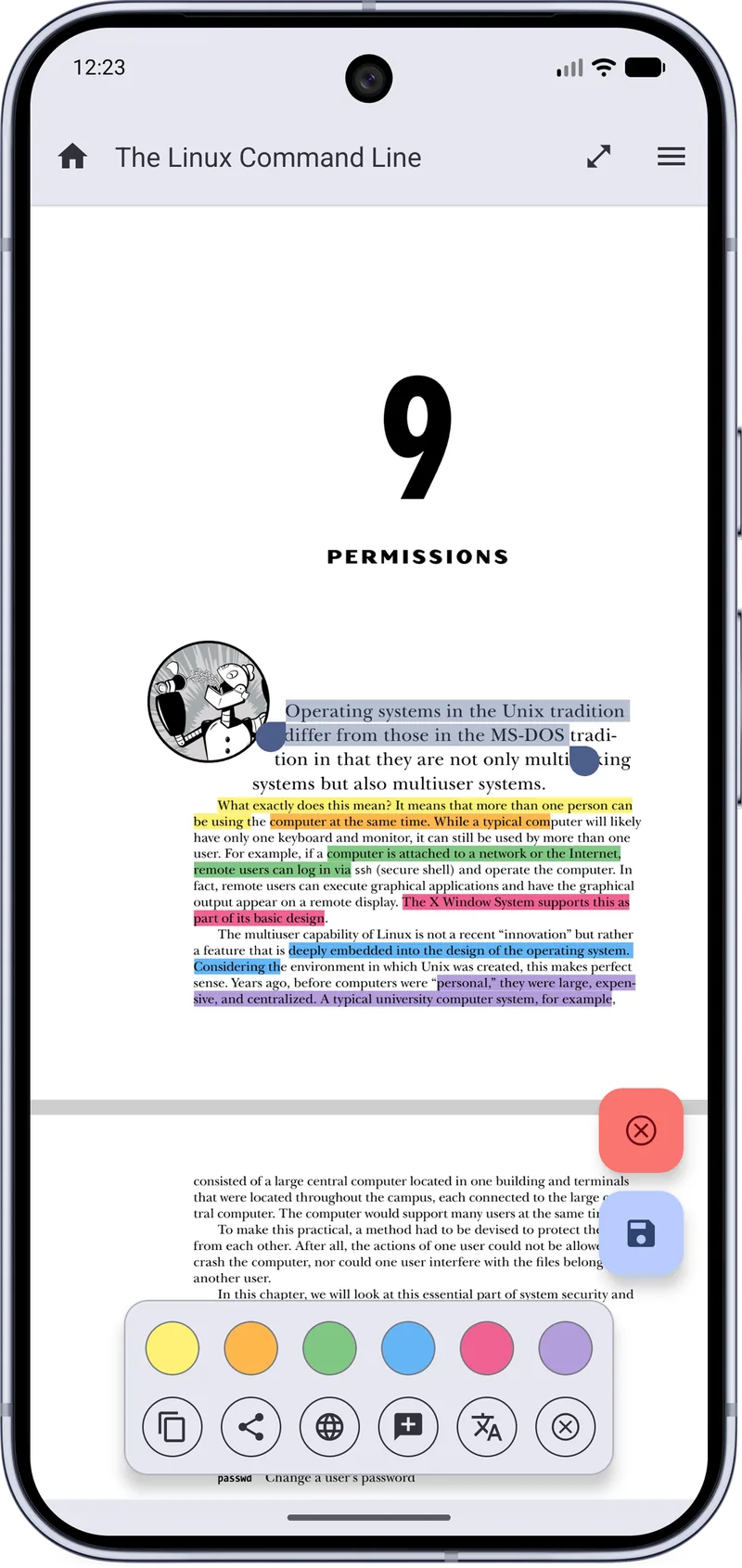
- Select textLong-press a word and drag the selection handles over the passage you want to mark.
- Choose a colorA bar appears with a row of highlight colors. Tap one to apply it to the selection.
- Use the quick actionsThe same bar offers copy, share, web search, add note and translate, so you can act on the selection without leaving the page.
- Review your highlightsOpen the reader menu and choose My Highlights to see everything you have marked.
Tips
- Use one color per purpose, for example yellow for key ideas and blue for definitions.
- Combine highlights with notes for passages you want to revisit.
- Use Share Quote to turn a highlighted passage into an image.
Related guides
How to Read PDFs in Dark Mode on Android
Turn on dark mode in MJ PDF 3.1.0 for comfortable night reading. The PDF page itself is darkened, not just the app interface.
How to Share Quotes from a PDF as Images
Create a shareable quote card from any PDF passage with MJ PDF 3.1.0, with book name, author and light, dark or sepia themes.
Get MJ PDF 3.1.0
Free, open source and ad-free. Install from F-Droid or IzzyOnDroid, or read the source on GitLab.